
Just like with a lot of things you end up buying once every half a decade, you never actually know what has changed and improved with that technology since the last time you had to buy that particular thing. PC-Displays tend to fit into this category. A good PC display can hold up for a lifetime the only things that do usually change are the requirements of the user.
Because of this I decided I needed to make this comprehensive guide on the current display technology available so that you can be very well informed and easily select the right display for your needs.
Contents
Panel Types
I could talk about CRT-displays here, do you remember those large tube display? Of course you don’t because they are being so rarely used these days that most regular people can’t buy them anymore. So I will be only talking about flat panel display throughout this guide.
The 3 types of panels
Generally speaking there are 3 types of display available for purchase:
- TN-Panel displays
These are the earliest and most widely spread form of flat panel displays available. The advantage of these panels is that they have very good response time and are relatively cheap to make and replace. Their main disadvantage is that they don’t offer a very good color fidelity and have limited viewing angles. You can easily tell you are looking at a TN-panel display when the image becomes brighter or darker as you look at it from different angles. Due to the good response times and affordable prices, this type of panel is usually found in most gaming oriented displays.
- IPS-Panel displays
IPS-Panel displays came out as an improvement over the color reproduction capability and viewing angle of typical TN-Panels. This is exactly what they do. They offer superior image quality with better viewing angles but do suffer from a slower response times. They have improved a lot over the years and the response time isn’t an issue anymore. Between these two types of panels an IPS-panel display is more desirable right now. IPS-panel displays are generally used for people working in visual fields that require very high image quality and color fidelity.
- VA-Panel displays
The VA-panels are basically an in between solution to TN and IPS. They offer better image quality than a typical TN-panel though not as good as an IPS screen while offering superior response time to an IPS-panel but not as good as a typical TN-panel.
The big LCD/LED battle
There is a big misconception for most people when they see an LCD or LED display. The thing is that every LED-display is also a LCD screen, the difference is in the backlighting technology. Screens designated as just LCDs use fluorescent light for their backlight. In the case of an “LED-display” you get basically the same LCD-panel but the backlight is provided by LEDs.
The difference in performance and longevity is obviously in favor of LED displays. On top of better backlighting, leading to better white and black rendering on screen, LEDs tend to last longer than fluorescent backlights. You get better contrast and a more evenly spread backlight on an LED-display than on fluorescent backlit displays. Basically you get a far superior image with better color reproduction on LED-backlit displays. They also tend to cost more because of it.
LED-displays can also be made much thinner and more compact and also require less energy to power. This makes them ideal for most mobile applications out there as battery life has become quite an issue in recent years.
So generally speaking, yes, LEDs are better than LCDs, but don’t get confused into thinking that they are completely different. It’s just the backlighting technology that’s different.
Subpixel rendering
Due to the way the panels are built if you run your display at anything other than native resolution you will get subpixel rendering and smearing of the image. A great example of this are displayed lines and text. It happens quite often that a particular line or letter doesn’t line up with the pixel geometry of the panel. To compensate for this displays light up the adjacent element slightly to compensate. Here’s an example of the underside of the letter A on different displays:
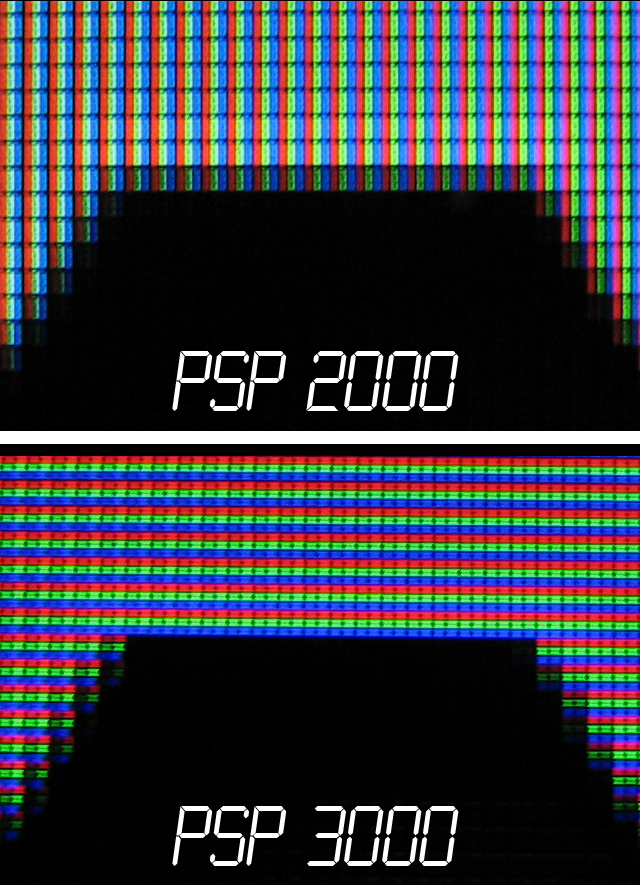
Subpixels rendering on Displays
This smearing used to be a problem in the past with displays where manufacturers advertised their screens with higher resolutions than they actually had, or where the panel and rendered resolutions wouldn’t match.
Today this effect is mostly noticeable in dual monitor setups with 2 different monitor models and brands.
DPI and Resolutions
Most people like to talk about Resolution but forget that the thing you are actually looking at is the DPI or dot per inch of the display. So let’s first explain what each one is and why both are important when looking at a display.
Resolution
An electronic image is always made up of individual pixels with a certain color that is displayed. To get an entire image you have a whole bunch of pixels of different colors and brightness that build up the entirety of the image. The more pixels you can get, the clearer the displayed image is and this is what resolution is. A screen resolution tells you how many pixels it can display.
Here’s an example of how resolution plays into image quality:

Higher resolutions mean sharper images.
When you see a badge on a display saying 1920×1080 resolution it means that that particular display has 1920 pixels across and 1080 pixels vertically. This same resolution is usually also marked as 1080p, because the image is 1080 pixels high. A 720p screen can display images that are 720 pixels high.
You will notice that there are many different screen sizes with the same resolution and this is where DPI comes in.
DPI or Dot per Inch
Because some screen resolutions are typically used you will inevitably have screens that have the same resolution but different screen sizes. What this means is that the individual pixels themselves have different sizes depending on the screen.
To describe this the concept of DPI is used. The DPI count tells you how many pixels can fit in one square inch.
The higher the DPI the sharper the image you are looking at is. So both resolution and screen size play a big role in how sharp the image you are looking at actually is.
The high DPI is the main selling point of Apple’s Retina Displays. They have a DPI of around
220 at which point the human eye can’t see the individual pixels anymore. What this means in screen size and resolution is the following: the 15-inch MacBook Pro Retina screen has a resolution of 2880×1800 pixels. If you think about it for a moment, that resolution is more than most FulHD(1080p) flat screen TVs most people have at home while being only a fraction the size. This is the main reason why Apple products have such great looking displays.
Scaling
Now let’s talk a little about how computer graphics are made and displayed and how this plays into what is actually shown on screen.
Generally computer graphics are pixel based and their size is given by how many pixels they use. So an piece of a program interface that’s let’s say 100 pixels by 200 pixels will always be this size no matter how large your display is and what resolution you are running. This is where high resolutions can cause problems for most people.
If you have a very high resolution on a very small screen(i.e. have high DPI) everything will be displayed very very small and very hard to see. For these situations every operating system has built in scaling features. Meaning it will try to display the same image using more pixels than it originally has. When we talk about text this leads to higher quality shaper text, for images it doesn’t always work out quite as well and it can lead to blurring.
In the past scaling has always been an issue, but thankfully as high DPI displays have started becoming more common this feature has improved a lot and has become seamless and rarely if ever noticeable.
What to look for
The main problem with high resolution, high DPI screens is that all that level of detail comes at a cost. A considerable cost I might add the small detail that to get 220 DPI on a 21-inch screen, it needs to be a 4K-display or have a resolution of 4096×2304. As I write this there aren’t many displays of this size and resolution that are affordable.
Aspect Ratios and Ultrawides
The aspect ratio is the ratio between display height and display width. The aspect ratio gives you the “feel” of the display and image and it plays a very big role in blockbuster movies. Not many people notice this, but it even changes from scene to scene in some movies for extra effect, but we’re off on a tangent, back to PCs.
In the PC world, people used to have 4:3 aspect ratio screens in the past when multitasking still wasn’t a thing, then as people started noticing that they need more width to fit more applications side by side and watch movies at home they moved on to 16:9 or 16:10. What all these number mean is that there are 16 equal “parts” horizontally to 9 “parts” vertically. Not very intuitive, I know, but that’s what it’s called. 16:9 has held on for so long and has become the norm because it comes very close to the golden ratio that people generally like to see in things.
More and more people have started using dual 16:9 monitor setups nowadays. 4:3 aspect ratio displays have all but disappeared and we are slowly moving into Ultrawide display territory with every passing day.
Ultrawide displays are still relatively new and have a typical aspect ratio of 21:9. Their prices have slowly started to come down and I expect them to replace dual monitor setups soon. No one likes the color tone differences in dual monitor setups.
Depending on how much screen real estate you require for what you do, pick the one that best suits your needs.
Do also bear in mind, that not all games support all non-standard aspect ratios and this can lead to disproportionate images.
Multi-display setups
I think this sort of needs to be added here. There are quite a fair amount of people who use more than a dual-monitor setup. Here’s the thing, you can generally get away with an array of cheaper displays than with 1 big and expensive one that probably isn’t as good.
The problem comes with making everything sync up and working together the way you intend. This can be a large post in itself which I’ll probably write on day, but to keep it short, you need software that knows where each display is and what to display on each. AMD has Hydravision, nVidia has Mosaic, and there also are many third party applications like DisplayFusion that are built specifically with this usage in mind.
Also highly recommended in multi-display setups are color calibration tools.
Refresh rates (Hz)
You will notice that most displays have their refresh rates in Hz right on the box. The refresh rate tells you how fast the displayed image changes every second. Lower refresh rates can lead to high response time, smearing of text and features while moving windows and on older CRT-screen would lead to noticeable flickering.
The typical refresh rate has for a long time been 50 to 60Hz. Anything lower than this would lead to very noticeable flickering on CRT-displays. LCD-panels don’t have flickering, but what they do have is response time.
Because the refresh rate dictates how many images can be displayed/second your displays Hz is also the upper limit of your frames per second(FPS) in any game. The graphics card can send more frames per second, but your display may not be able to display them.
Response time
Response time is also a feature that sometime gets neglected by most people purchasing displays. The response time is defined as the time it takes for one pixel to change state from fully lit (white) to fully off (black) and back to fully lit again. The response time is usually far more important than the refresh rate because even if you can send and display individual frames at 60Hz if the pixels can’t change their color fast enough you get smearing and blurring. At a bare minimum an individual pixel needs to be able to fully change states in 8ms (1000ms/60Hz/2). Response time also dictates how fast the action you sent to your computer get’s displayed on screen leading to input lag. If you play any fast paced game you know what a bit difference a few milliseconds of lag can do your game.
The fact of the matter is that most cheap displays can’t manage even the 8ms response time and if you have ever had to deal with one of these displays you will have surely noticed smearing while scrolling through a document. Examples and more on this here.
Generally speaking, especially for gaming applications you should be aiming for displays with very fast response times, in the 2 to 4ms range.
Frames per second and gaming
As you have guessed by now the display’s refresh rate plays a huge role in gaming and also leads us nicely into some problems that are getting fixed with advanced technology on more expensive displays.
Here’s the thing, most typical displays have a fixed refresh rate, so they will refresh the displayed image accordingly no matter if your graphics card can render that many frames per second or not. This leads to the well known problem of screen tearing. Screen tearing is a phenomenon that appears when there is a big miss match between the frames per second rendered by the graphics card and the refresh rate of the screen. This leads to “half- frames” being displayed leading to tear lines in the image during movement. It is very noticeable and distracting. The only solution to this is either limiting the frame rate to something proportional or having more frames per second than needed.
The solution to this has for a long time been VSync and it does just that, it limits how many frames per second are sent to the display and also waits for the confirmation from the display that those frames have been displayed. Because of this waiting VSync is usually 2 to 3 frames behind of what is happening and this leads to a lot of input lag. I can already hear you “But 2-3 frames aren’t that many anyway!” but they are, they really are. So get this, if you need 16ms to display a frame at 60 FPS (1000ms/60Hz), then your inputs are always 48ms behind the action. Now let’s say you graphics card can’t render at 60 FPS, so VSync locks your frame rate at 30. You are handicapping yourself by 96ms before you even add in any other form of input lag. Ever try to play Counter-Strike with more than 100ms network lag? It’s not a pleasant experience. This is also the main reason most serious shooter game players have 120Hz displays and everything set to low.
Because of the limitations of VSync both nVidia and ATI have created new technologies to better synchronize what is rendered to what is being displayed.
Freesync and GSync
Both Freesync and GSync do effectively the same thing, they dynamically change the display’s refresh rate (Hz) to match the rendered FPS. It is quite a big improvement over VSync, effectively removing screen tearing and also reducing input lag significantly.
The problem with both of them is that your display has to support this technology and it usually supports one or the other. You have to decide based on your graphics card what display is compatible with it.
Seems like quite a lot to process, but we’re not finished with refresh rate yet:
3D video
3D video is where a lot of this stuff gets compounded because you effectively have to do everything twice so that you can render 2 slightly different images for each eye on the same display. This is why you won’t be able to find 3D-ready displays with refresh rates lower than 120Hz.
Now the way 3D is delivered to you varies from manufacturer to manufacturer and the solution used. It usually involves a pair of glasses that are either polarized or electronically controlled to cover one eye or the other while the images are being displayed on screen.
Obviously this also requires quite a lot more processing power from your PC.
Connectors
VGA and DVI
The basic connection that have been a standard for many years in the PC world have been the old analog VGA-connector and the improved digital DVI-connector. While these two especially DVI are still very much capable they are slowly getting phased out in favor of more compact solutions like HDMI and Display-Port.
While VGA has started to become pretty rare on newer displays DVI is still present on almost all of them. Seeing as even graphics cards are starting to phase them out, you should probably focus on the newer standards and only prioritize these older standards only if your PC requires it.
HDMI and Display-Port
There is a fight raging on right now between HDMI and DisplayPort with both offering very similar performance. Both HDMI 2.0 and DisplayPort 1.3 in their latest iterations support 4k at 60 Hz with DisplayPort supporting 4k at 120Hz.
In the past I said that I believed that HDMI would win this because it has become too widespread for anything to catch up to it, right now though I’m not so sure anymore.
DisplayPort has gotten some major updates and advantages over HDMI and I have to admit that I now think it might become the winner.
The big difference between the two, other than the slightly different standard connector, is that the standard HDMI-connector is more widespread, the smaller, compact connector isn’t as widespread and HDMI taps out at 4k at the moment. On the plus side HDMI brings a network connection, more audio functionality, and can be used for multiple devices to be used with one remote.
On the other hand DisplayPort is now standard on the latest graphics cards, it currently supports 8k at 30Hz and the main difference, that made me change my mind about it, recently they announced that it will be supported over USB Type-C connectors. This means that in the future you’ll be able to use ANY of your USB Type-C connectors on your device to connect to a DisplayPort enable display. This alone seems to me like enough reason for most manufacturers to skip installing and paying licensing fees for HDMI altogether. The Apple Macbook already uses this exact setup.
Another feature that severely limits HDMI is that DisplayPort supports dual mode, meaning you can connect up to 3(that’s right 3) displays to one single DisplayPort. For all intents and purposes DisplayPort is currently superior in every way to HDMI.
I might be wrong on this one, but if HDMI doesn’t do anything to improve its performance I don’t think it’ll be here for long.
So I would recommend looking for a DisplayPort compatible Display in the future.
Cable and Digital programing
Some PC monitors come with built in TV functionality. They are basically TVs that you can connect to your PC. If you don’t want to get another big display to install next to your PC for TV this might be a good solution.
Touchscreens
I have personally not used touchscreens on my main displays, but I can see how they might be useful for people doing a lot of visual design work. In the case of gaming PCs, I’m not particularly sure why you would want one, but you definitely can. To keep this guide complete I have to say a few words about it.
There are 2 main types of touchscreens, capacitive and resistive.
Resistive touchscreens need pressure to “read” your touch, making them ideal for POS machines, ATMs and generally places only need button press interactions.
Capacitive touchscreens work by using the human body as el electricity conductor and don’t need any pressure on them to work. They even work with your fingers being close enough to them. Capacitive touchscreens have caught on and have become widespread on almost all handhelds. For swiping, pinching and other gestures you generally need a capacitive touchscreen.
Now there are a few ways you can go about touchscreens:
You can buy a prebuilt touchscreen display that has everything built in and ready to use, but I expect these to not have the best LCD panel behind them. These are somewhat more expensive than the regular displays and the available models are still limited. Generally this works best for direct plug and play solutions.
Another way to go about it, if you are DIY inclined is getting the touchscreen film for your particular display’s size and adding it to your screen. It won’t be as professional but you can still remove the front cover and hide everything inside. You will have a wider selection of displays with very good specifications and touchscreen functionality.
We are nearly 5 years since the launch of Windows 8 and the big push to touchscreens, but they still are very few present on people’s desktops. I still think it’s too early for the way we use our computers right now.
Conclusion
I honestly wanted to add another section and more details but this guide is already getting pretty long. I think I covered all aspects and specifications that would influence your buying decision of a display for your gaming PC. As a final taught, because a display outlasts most PCs, I would prioritize resolution and response time over anything else. You can still game quite well with a 60Hz display, but it becomes quite difficult to have a good time if you suffer from input lag and low image quality.